Automatic Import 3: Multiple Files
This page lets you see all of the imported sounds in the context of a sound map.
Sound Map
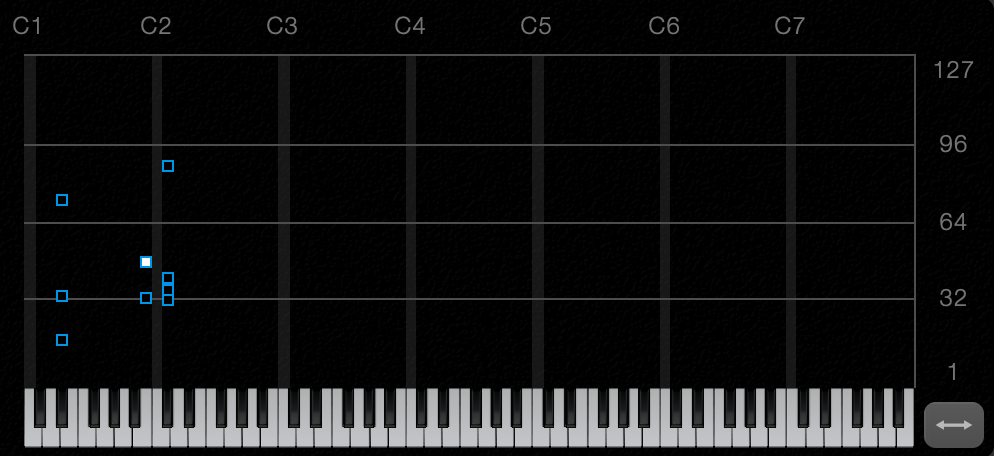
This shows where individual notes (sounds) have been placed in the note / velocity map.
Velocity
Sounds are placed vertically at a velocity that corresponds to the volume of the original wav file. If a sound was normalised to the maximum volume, it will be placed at the top of the map at velocity 127.
Quiet sounds will be placed at lower velocity positions.
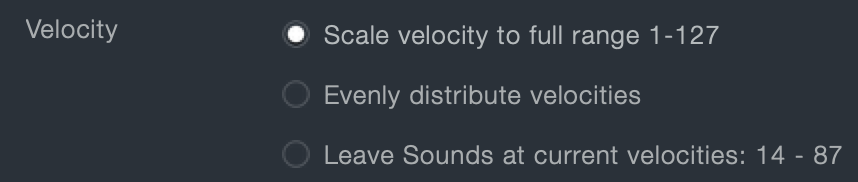
These three options will re-position the sounds in the map vertically.
- Scale velocity to full range
The quietest sound will be placed at the bottom of the map at velocity 1, and the loudest at the top velocity 127 - Evenly distribute velocities
If there are multiple sounds on one note, they will be spread evenly in teh vertical velocity range. If there is only one sound on a note, it will be placed in the middle at velocity 64 - Leave sounds at current velocities
Sounds will be left in the map at their current position
Volume options
You may have imported sounds of varying volumes. The volume of the original source material will be stored in the UltraWave sound. This means that very quiet samples will be played back quietly, and similarly with loud samples.
This parameter can be edited on the edit sound page.
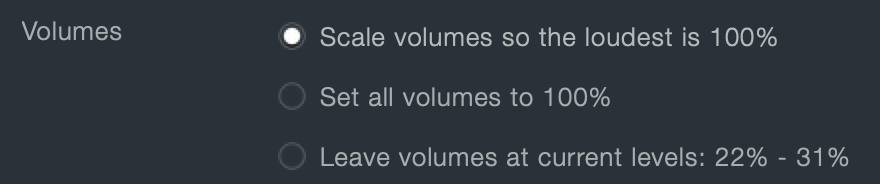
- Scale volumes
Increases the volume of all sounds so that the loudest sound is at full volume. Use this if you have finished importing. - 100% volumes
Sets all sounds to full volume. Use this when the sounds are similar in volume and any multi sampling is more like a round-robin situation - Leave volumes
Does nothing. This is useful if you intend to import more sounds into your UltraWave map and want to retain the volume information and scale all the volumes when you have finished.
When you have finished, pressing done will take you back to the main Synth page.
The UltraWave will not be saved until you save the patch.