Installation
Follow the steps below to set up Ultra on your macOS or Windows device, either as a standalone application or as a plugin for your Digital Audio Workstation (DAW).
Download
Go to the Download page and select your platform to download the latest version.
Installing Ultra
macOS
- Once the download is complete, locate the installer's .pkg file in your Downloads folder (e.g., Ultra-1.0.0.pkg) and open it.
- Follow the prompts in the installer.
- By default, the standalone app will be installed to your Applications folder, and Ultra’s VST3 and AU plugins will be copied to the appropriate locations on your system.
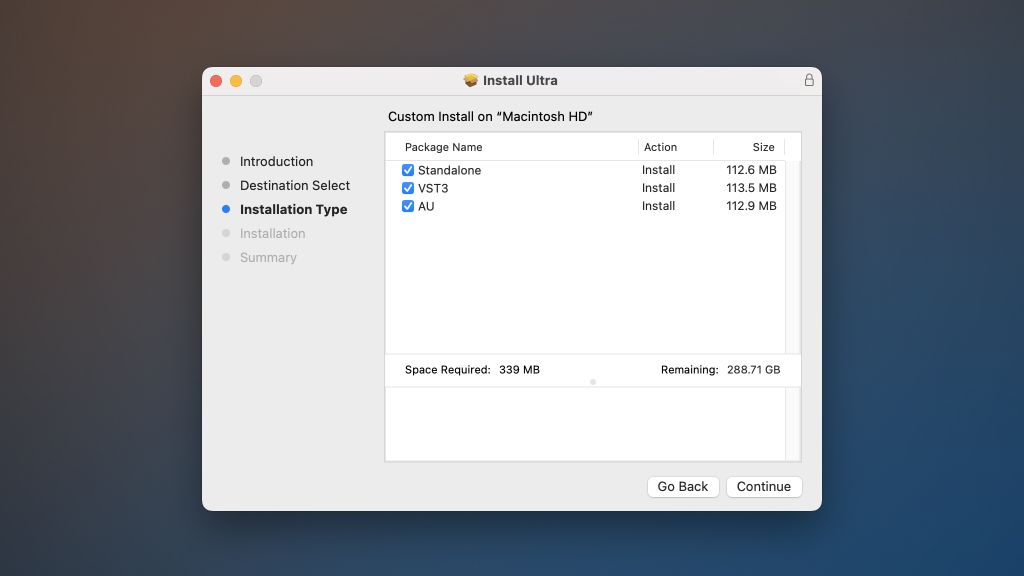
The installer allows you to select which plugins to install. VST3 plugin format is used by Ableton Live, FL Studio, Pro Tools, Cubase, and most other DAWs. AU plugin format is used by Apple Logic Pro X, and GarageBand.
Windows
- Once the download is complete, locate the installer's .exe file in your Downloads folder (e.g., Ultra-1.0.0.exe) and open it.
- Follow the prompts in the installer.
- The standalone app will be installed in your Start menu, and Ultra’s VST3 plugin will be copied to the appropriate location on your system.
Linux
Requirements:
- Desktop Linux with glibc 2.35 or newer (e.g. Ubuntu 22.04 or later)
- curl
- ALSA
- JACK (optional)
- GTK 3 and pkexec, for the graphical installer
Graphical install (recommended):
- ./install-ultra
Command-line install:
- ./install.sh # per-user: ~/.local, ~/.vst3
- sudo ./install.sh --system # system-wide: /usr/local, /usr/lib/vst3
Options:
- --system Install system-wide (requires root)
- --accept-eula Accept the licence without prompting
- --no-standalone Skip the standalone app
- --no-vst3 Skip the VST3 plugin
- --standalone-dir DIR Install the standalone binary to DIR
- --vst3-dir DIR Install the VST3 plugin to DIR
- --help List all options
Uninstall:
- ./install.sh --uninstall # per-user install sudo ./install.sh
- --uninstall # system-wide install
Using Ultra standalone
macOS
- Navigate to your Applications folder and double-click Ultra to launch the standalone app.
Windows
- Open your Start menu and click Ultra to launch the standalone app.
Using Ultra in your DAW
After installation, Ultra will be available as a plugin in your DAW. To load Ultra as a plugin:
VST3 Plugin
- Ensure your DAW supports VST3 plugins and has scanned the appropriate folder
- macOS:
/Library/Audio/Plug-Ins/VST3/ - Windows:
C:\Program Files\Common Files\VST3\ - Linux: User install:
~/.vst3, System install:usr/lib/vst3 - Open your DAW and load Ultra from the VST3 plugin list.
AU Plugin (macOS only)
- Open your DAW and navigate to your AU plugin list to find and load Ultra.
Troubleshooting
If you encounter issues during installation or the app doesn’t start, please contact our support team or join the Discord community .